New in Razuna: Scoped access tokens and member activity logging

A tool that reads your campaign library doesn't need permission to change it. And when someone changes a member's access, your administrators need a way to see what happened.
Two updates in Razuna help with those jobs: workspace restrictions and read-only settings for access tokens, plus expanded member activity logging in Reports.
Give each connection the access it needs
An access token lets an application work with Razuna on your behalf. You can now restrict a token to one workspace and make it read-only, even when your own account has broader access.
These are separate choices. The workspace setting determines where the token can operate. Read only prevents changes through that token. Your existing user and folder permissions still apply: token settings can reduce your access, but they cannot grant more.
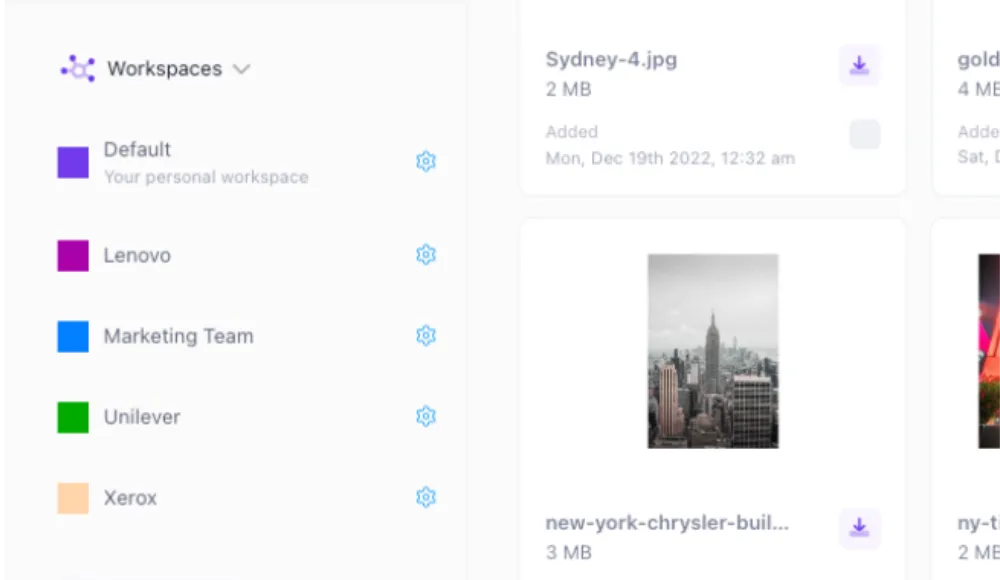
For example, you might manage several client workspaces while a reporting tool only needs to read files in one of them. Create a token for that workspace and enable Read only. You keep your normal access in Razuna; the tool gets a narrower connection.
A read-only token can still read or download files where your permissions allow it. Choose the workspace with that in mind. If a connection needs account-wide operations, check its workflow before switching it to a single-workspace token.
Set up a restricted token
- Open your user profile and go to Access Tokens.
- Create a token and give it a name that identifies the application or job.
- Choose a specific workspace instead of All.
- Enable Read only if the connection does not need to change files.
- Save the token, copy its credential, and test the connection with the intended workflow.
Existing tokens are not automatically narrowed to a workspace. When replacing one, test the new connection before removing the old token. For connection details, see the Razuna API authentication documentation.
See member activity alongside asset activity
Reports now includes more of the actions involved in managing people and their access. Open All activities to review member events alongside the existing file, folder, search, and sharing history.
The member logging covers these successful actions:
- Sign-ins and sign-outs, profile updates, and password changes.
- Adding or removing members, changing workspace permissions, and adding or removing co-administrators.
- Adding or removing team members, changing a team's workspace permissions, removing a team from a workspace, and deleting a team.
- Enabling or disabling two-factor authentication, configuring security keys, adding or removing passkeys, and creating or removing access tokens.
Folder activity also includes creation, permission changes, moves, trash, restore, and completed user-requested permanent deletion. That brings access changes and library changes into the same report.

Find the person and action you're looking for
In Reports, choose All activities, select Member in the type filter, and narrow the results with the action and User filters. You can combine those filters instead of scanning the whole history.
If a teammate's workspace access changed, start with permission or team actions. If you're reviewing credentials, look for token, passkey, or two-factor configuration events. The report distinguishes the person making the change from the member affected.
Credential events record the change without copying passwords, token secrets, or authentication keys into the activity entry. Account-level member events are limited to account owners and co-administrators; workspace events follow workspace access.
The new member events are recorded going forward. They do not reconstruct actions that happened before those events were logged.
Review access as part of your normal workflow
Start with a connection that only needs to read one workspace. Give it a scoped, read-only token, then use All activities to review member and permission changes in the library your team manages.
For the wider setup, see how folder permissions work and our guide to controlling access when teams share assets. You can also browse Razuna's file management features.
Open Razuna to create a restricted token or review your activity reports.