New in Razuna: Save Additional Image Formats Once, Download Them Anytime
New in Razuna: Save Additional Image Formats Once, Download Them Anytime
Images rarely leave your digital asset management system in just one size.
A product image might need one version for e-commerce, another for a press kit, another for social media, and another for a partner portal. A campaign hero might need a WEBP for the website, a PNG for a presentation, and a JPG for someone who just needs a quick download.
Until now, that often meant repeating the same resize and conversion work again and again.
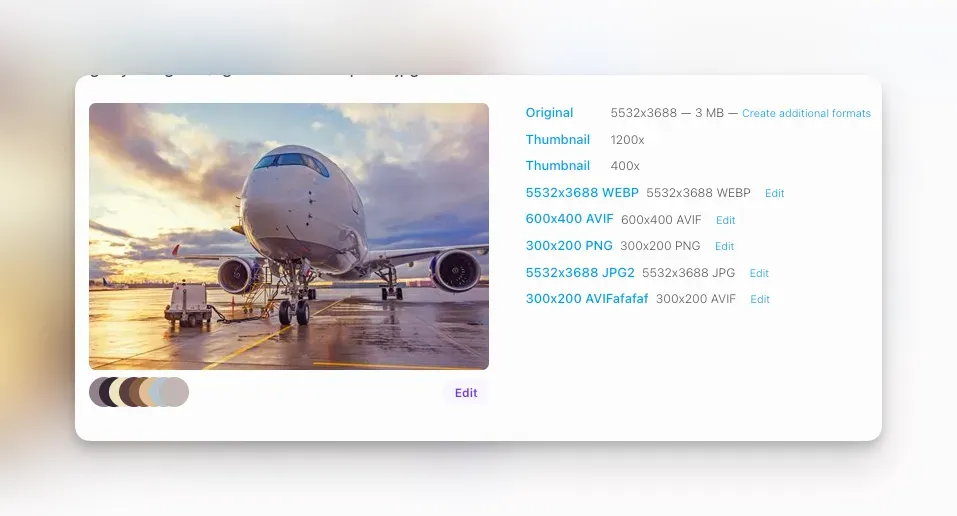
Razuna now lets you save Additional Formats for image files. Create the format once, name it, and download it again whenever you need it.
What Additional Formats Do
Additional Formats are reusable image download recipes.
You choose the output format, dimensions, and optional name. Razuna saves those settings in the file. When someone downloads that format, Razuna generates the converted image on demand.
The original asset stays untouched.
That means you can keep one master image in Razuna and offer the exact delivery formats your team, clients, vendors, or systems need.
Available Format Options
Additional Formats work with image files and support JPG, PNG, WEBP, and AVIF.
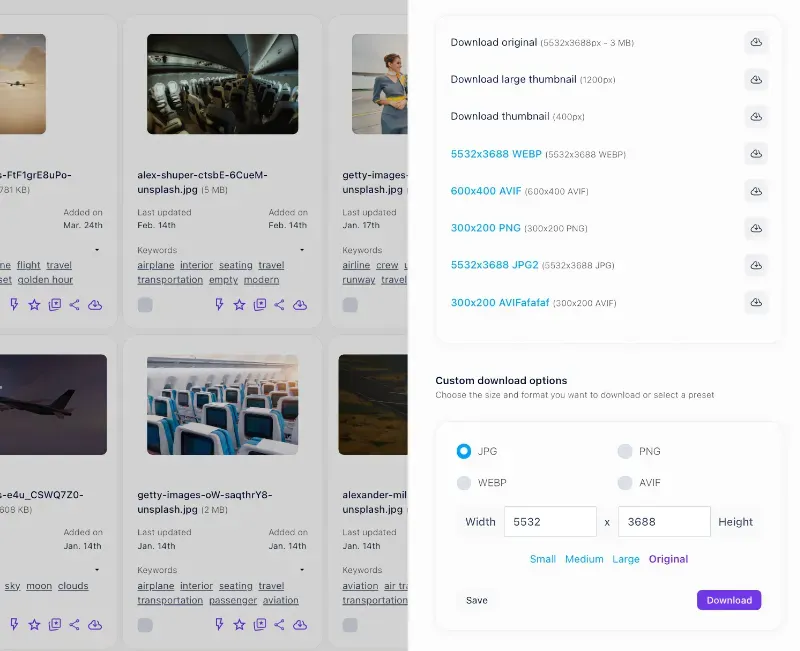
You can enter a custom width and height, or use the built-in presets: Small at 300px max, Medium at 600px max, Large at 1200px max, and Original at the original image dimensions.
Razuna keeps the aspect ratio intact and avoids upscaling beyond the original image dimensions in the app.
Saved formats also have a reusable name. If you do not name one through the API, Razuna uses a clear default, such as 1200x800 WEBP. In the app, you can rename saved formats later.
Where You See Them
Saved formats appear directly with the file.
Open an image, choose Download, and you will see the usual download choices, including the original file and thumbnails. Additional Formats appear alongside them as named download options.
Users with workspace edit permissions can save a new format, rename a saved format, delete a saved format, and download any saved format.
This is useful for teams that repeatedly need the same export sizes, such as website hero images, ecommerce product images, social media crops, press images, partner-ready files, lightweight WEBP or AVIF versions, and presentation-ready PNG files.
No Duplicate Files
Additional Formats do not create duplicate assets in your library.
Razuna stores the settings only. The converted file is generated when downloaded through Razuna's on-the-fly image conversion system.
So you get reusable outputs without cluttering the folder with copies like hero-final-web.jpg, hero-final-web-v2.webp, or hero-social-final-final.png.
One master file. Multiple reusable download formats.
Sharing Saved Formats
Additional Formats also work with share links.
When you create a share link, you can decide which recipients may download: the original file, a thumbnail, a large thumbnail, and selected Additional Formats.
Public recipients only see the formats allowed on that share link.
This works for shared files, folders, and collections that have saved formats attached. It gives you more control over what external users receive without changing the original asset or creating separate files.
API Support
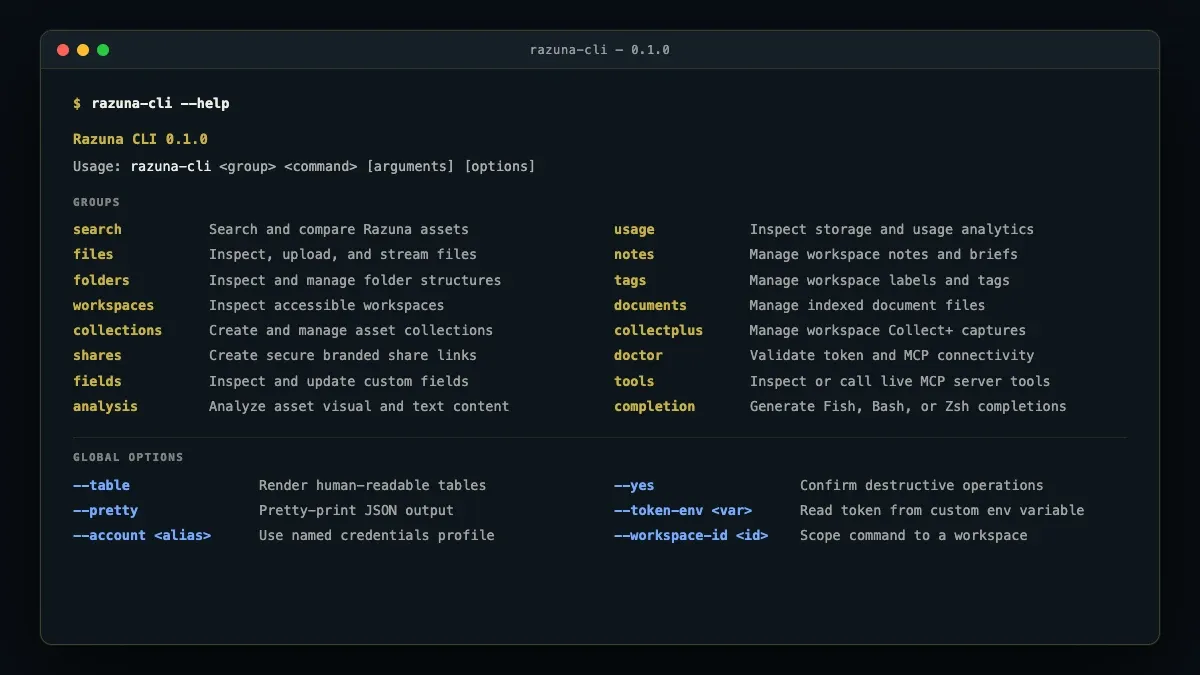
Additional Formats are also available through the Razuna API.
Use GET /api/v1/files/file/{id}/formats to list saved formats.
Use POST /api/v1/files/file/{id}/formats to save a format with name, format, width, and height.
Use DELETE /api/v1/files/file/{id}/formats/{format_id} to soft-delete a saved format.
Saved Additional Formats support jpg, png, webp, and avif.
For one-time image transformations, use GET /api/v1/files/file/{id}/transform?width=1200&height=800&format=webp.
The transform endpoint supports jpg, jpeg, png, webp, avif, and tiff.
Use workspace_host_id when working across workspace or tenant contexts.
For systems that cannot send authentication headers, such as some CMS embed contexts, the transform endpoint can also accept an access_token query parameter. Treat those URLs as secrets, because the token grants access as the caller.
MCP Support
Additional Formats are also available through the Razuna MCP server.
Use save_image_format to save a reusable format recipe for an image.
Use transform_image to generate a transformed image URL without saving it as a reusable format.
Set embed=true with transform_image when you need a URL that can be pasted into tools like Webflow CMS, Vista Social, or an HTML image field that cannot send custom headers.
Use get_file to view file metadata, including saved download formats.
Saved Format vs. One-Time Transform
Use Additional Formats when the same output will be downloaded again.
Use Transform Image when you need a one-off resized or converted image URL.
Both are useful. Additional Formats are for repeatable team workflows. Transform Image is for quick, dynamic output.
Try It
Log in to Razuna, open an image, choose Download, create your format, then save it. From then on, that format is ready whenever your team needs it.