How To Send Large Files: 6 Easy & Secure Ways

Trying to send a 2GB video file to a client? Need to share high-resolution design mockups with your team? We've all been there—staring at that frustrating error message: "File too large to attach." When deadlines are tight and stakeholders are waiting, this roadblock can derail your entire workflow.
The challenge of sending large files is more than just an inconvenience—it's a security concern. Email attachments can be intercepted, compressed files can lose quality, and finding a solution that's both secure and simple can feel overwhelming. Whether you're transferring 4K video footage, CAD files, or comprehensive project archives, you need a reliable method that won't compromise your data or waste precious time.
In this comprehensive guide, we'll walk you through six proven methods to send large files securely and efficiently. From free solutions perfect for occasional transfers to enterprise-grade platforms with unlimited capacity and encryption, you'll discover step-by-step instructions, security features, and cost comparisons to help you choose the best option for your needs.
Related: If your file transfers are part of a compliance or audit workflow (permissions, logging, retention, HIPAA considerations), see our guide to secure file sharing for business.
6 Easy Ways To Email Large Files
Whether you need to send a one-time large file or regularly transfer gigabytes of data, these six methods offer secure, reliable solutions. We'll cover free options, paid services, and step-by-step instructions for each.
Free vs Paid Options: Quick Comparison
| Service | Free Limit | Paid Limit | Encryption | Best For |
|---|---|---|---|---|
| Filemail | 5GB transfer | Unlimited | End-to-end | Secure large transfers |
| WeTransfer | 2GB | 200GB (Pro), Unlimited (Premium) | Standard | Quick one-time shares |
| Dropbox | 2GB storage | 100GB free transfer, 250GB paid | AES-256 | Ongoing collaboration |
| Google Drive | 15GB storage | Up to 5TB files | 256-bit AES | Google Workspace users |
| Razuna | 500GB (5 users) | Unlimited | GDPR/HIPAA compliant | Complete DAM solution |
Key Security Features to Look For:
- End-to-end encryption: Services like Filemail encrypt files so only you and your recipient can access them
- Password protection: Add an extra layer of security to shared links
- Expiring links: Automatically revoke access after a set time period
- Two-factor authentication (2FA): Protect your account from unauthorized access
1. Compress Large Files Before Sending Them as Attachments
If your file is too large, just make it smaller. File compression allows you to reduce the size of your large files, which speeds up sharing files over a network or the Internet. Files that would normally use up too much bandwidth and time to transfer can now be sent quickly and easily.
But file compression is not just an ideal way to send larger files. It also aids multimedia streaming, frees up disk space, and optimizes backup storage for all your other larger files. To compress files, you'll have to download and install compression software.
But be aware that some forms of compression reduce data quality, and others are incompatible with specific platforms. Examples of file compression are the ARC, ARJ, GZ, HQX, RAR, SIT, TAR, and ZIP file formats. Of these, ZIP is one of the most popular, because it can be opened in any operating system.
2. Use Cloud-Based Storage Services Like Razuna
If your organization has a lot of data to store and maintain, cloud storage is the answer. It's convenient, practical, and scalable, and typically offers top-tier data security, too. When you back your files up to the cloud, you can access them online anytime and anywhere.
But what about when you need to send some of those large files in an email? Many cloud-based services, like the ones in this guide, allow you to share your stored files from the cloud. You can also upload new files to share them.
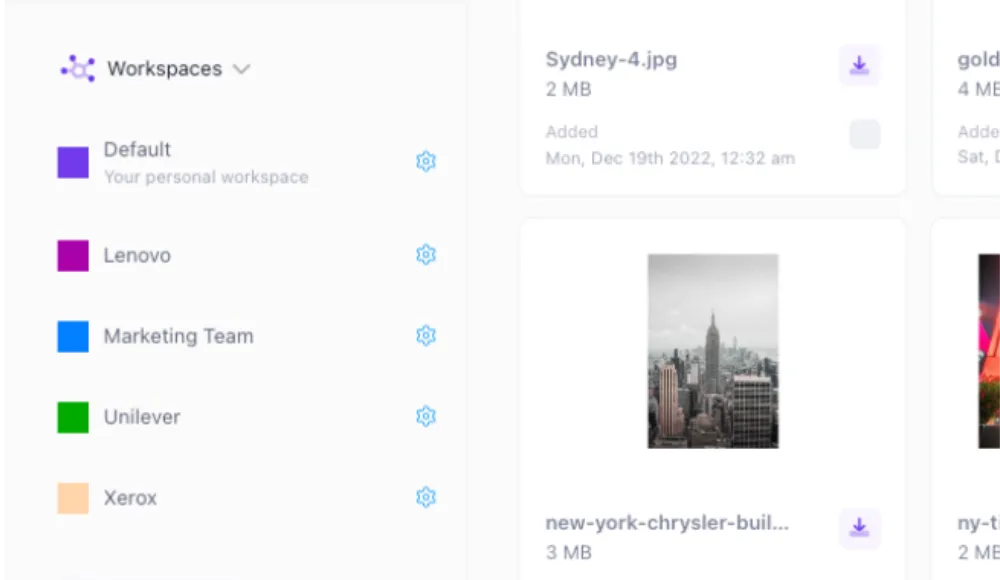
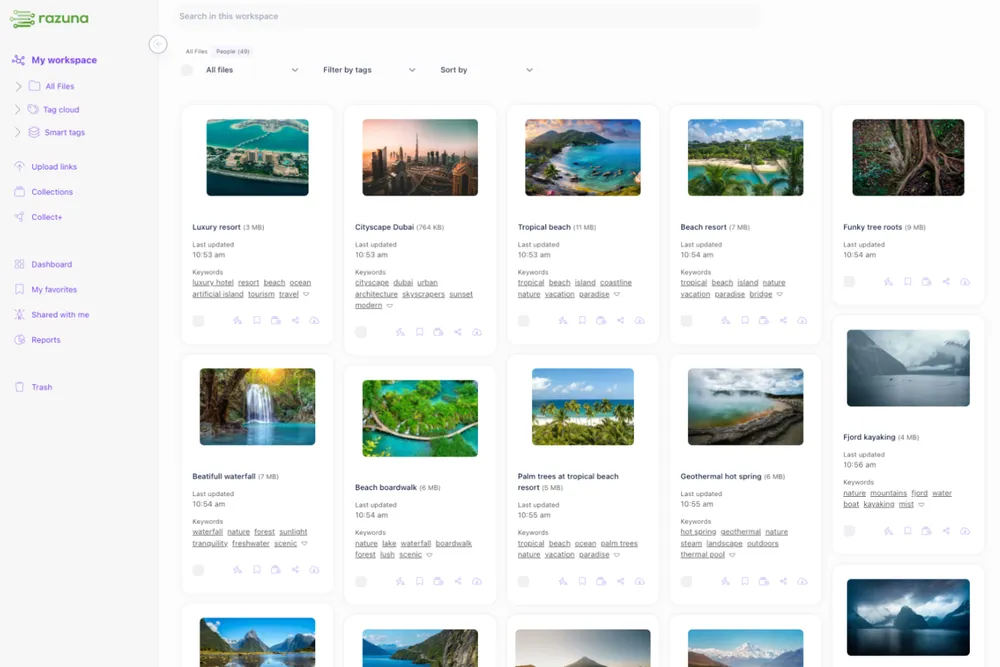
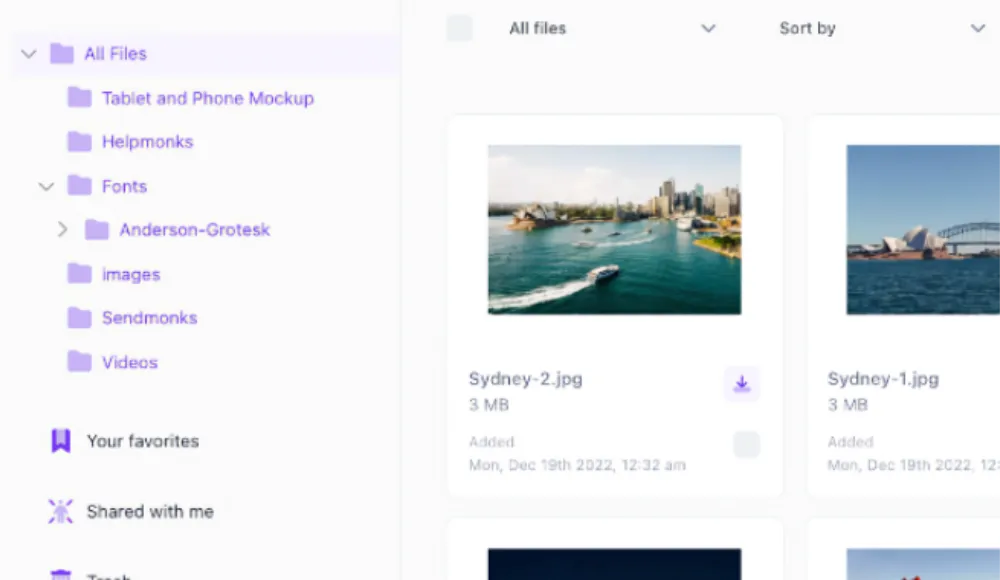
Razuna is an example of a cloud-based digital asset management system where you can upload, store, manage, and share all your digital files. And with its shareable links feature, you can share your files not only with coworkers and collaborators on the system but with the world.
Step-by-step: Sharing large files with Razuna
- Upload your large files to a Razuna workspace (supports 450+ file formats)
- Create a shareable link for individual files or entire folders
- Set password protection and expiry dates for added security
- Configure user permissions (view, download, comment, edit)
- Copy the link and paste it into your email
For public file-sharing of large files, create a sharing link on your Razuna app and paste it into an email. You can protect files shared in this way with a password, or set an expiry link and user permissions. So once your files are transferred, you don't have to worry about the security of your data.
3. Use Filemail for Unlimited Size Transfers with Encryption
Filemail stands out for its ability to handle files of any size with robust security features. With free transfers up to 5GB and unlimited file sizes on paid plans, it's an excellent choice for professional transfers requiring maximum security.
Step-by-step: Sending files with Filemail
- Visit Filemail.com (no account required for basic use)
- Click "Add Files" and select files from your computer (up to 5GB free)
- Enter recipient email addresses
- Add a message and enable end-to-end encryption (recommended)
- Click "Send" - recipients receive a download link via email
Why choose Filemail:
- End-to-end encryption ensures only you and your recipient can access files
- No file size limits on paid plans
- Transfer confirmation and download tracking
- Works across all platforms and devices
4. Email a Google Drive Link
One of the simplest solutions for how to email large files is to use a Google Drive link. You already have access to this service if you have a Google email account.
Step-by-step: Sharing via Google Drive
- Open Gmail and click "Compose"
- Type your message, then click the "Insert files using Drive" icon
- Select the file from your Google Drive (or upload a new file at this point)
- Choose "Drive link" for Google Docs/Sheets/Slides, or "Attachment" for other files
- Click "Insert" - Gmail will prompt you to adjust permission settings
- Set permissions (Viewer, Commenter, or Editor) and click "Send"
If you choose to use a Drive link, Gmail will prompt you to change any necessary permission settings. This helps the recipient view, comment or edit the file you send them.
5. Use a File-Storage and Sharing Platform Like Dropbox
The Dropbox platform allows you to store, edit, and share your files all in one place. Yes, even large files. Download and install the Dropbox app to start using it for file storage and sharing. It's available for Windows, macOS, and Linux operating systems.
Once you have done this, you can access everything you store in Dropbox by signing in to dropbox.com on any of your devices. You may also upload files directly through the web application. Once you have downloaded the app or signed into the web application, locate the file you wish to share.
Type the name or email address you want to share the file within the 'send' field and tap on 'share link'. You can also create a sharing link which you then copy and paste into other emails or text messages. The recipient will not need the Dropbox app to view the files you send them.
5. Send Through Microsoft OneDrive
Do you have a Microsoft account or one of Microsoft's email addresses? These include the Microsoft 365 suite and the Hotmail and Outlook email services. If you have an account and email address through Microsoft, you can use the Microsoft OneDrive feature to send your large files via email.
Open the official OneDrive site, select the sign-in option, and enter your Microsoft login credentials. Microsoft account holders get up to 5GB OneDrive storage space, free. You'll be able to access all your stored files from any of your connected devices.
Then when you want to share any file stored in OneDrive, it's a quick and easy process. Simply sign into OneDrive, locate the file, and click on the ‘share' tab. Enter the email address you wish to send it to and hit ‘send'.
6. Use a File-Transfer Tool Like WeTransfer
The WeTransfer file-sharing tool provides another simple solution for how to send large files via email.
If you're accessing the WeTransfer website on your computer, you don't need the app. You can send files up to 2GB free.
Need to send large files in higher volumes? That's not a problem, you can send up to 200GB and store 1TB of files on the paid version, WeTransfer Pro. And a Premium account gives you limitless file storage and file transfers.
You'll need to download the WeTransfer app if you want to use it on your mobile devices. But once you have, the file transfer page will automatically open when you open the app.
To transfer files, click on the + symbol on the file upload page. Click on the file in storage you want to send, or upload a folder from your computer or mobile device with the 'select a folder' option. Type in your email address, and that of your intended recipient/s.
You can give the file transfer a name and add a short message if you want to. Then hit 'transfer' and you're all done.
However, if you don't have a WeTransfer account, check your email inbox for a verification code from WeTransfer. Copy and paste it into the transfer window and select 'verify' and you'll be able to transfer the file after that.
Conclusion: Secure File Sharing Made Simple
Sending large files doesn't have to be complicated or insecure. Whether you choose a simple solution like WeTransfer for occasional transfers, leverage existing tools like Google Drive or Dropbox, or opt for security-focused services like Filemail with end-to-end encryption, the right method depends on your specific needs.
Quick Decision Guide:
- For maximum security: Use Filemail (end-to-end encryption, unlimited size on paid plans)
- For quick one-time transfers: WeTransfer (2GB free, simple interface)
- For Google Workspace users: Google Drive (15GB free, seamless Gmail integration)
- For ongoing collaboration: Dropbox (up to 100GB free transfers, 250GB on paid plans)
- For complete asset management: Razuna (500GB free for 5 users, unlimited users on paid plans)
However, if you're doing more than just occasional file transfers—if you're managing digital assets for marketing campaigns, collaborating with remote teams, or maintaining a library of brand materials—you need more than a simple file transfer tool.
Razuna delivers secure file exchange AND comprehensive asset management.
Unlike standalone transfer services, Razuna provides a complete digital asset management platform where you can upload, organize, edit, and share files of any size—all while maintaining GDPR and HIPAA compliance. Create secure shareable links with password protection and expiration dates, manage permissions at granular levels, and track every download with real-time analytics.
With Razuna, you're not just sending files—you're building an organized, searchable library of all your digital assets with AI-assisted tagging, version control, and customizable workspaces for clients and team members. And as part of the Helpmonks stack, you can seamlessly access your Razuna files directly from your email management system with the 'magic link' feature.
Stop juggling multiple file transfer services. Start your free Razuna account today with 500GB storage for up to 5 users and experience how easy secure file exchange and asset management can be!