15 Top Digital File Organization Ideas to Keep Your Team's Assets Under Control
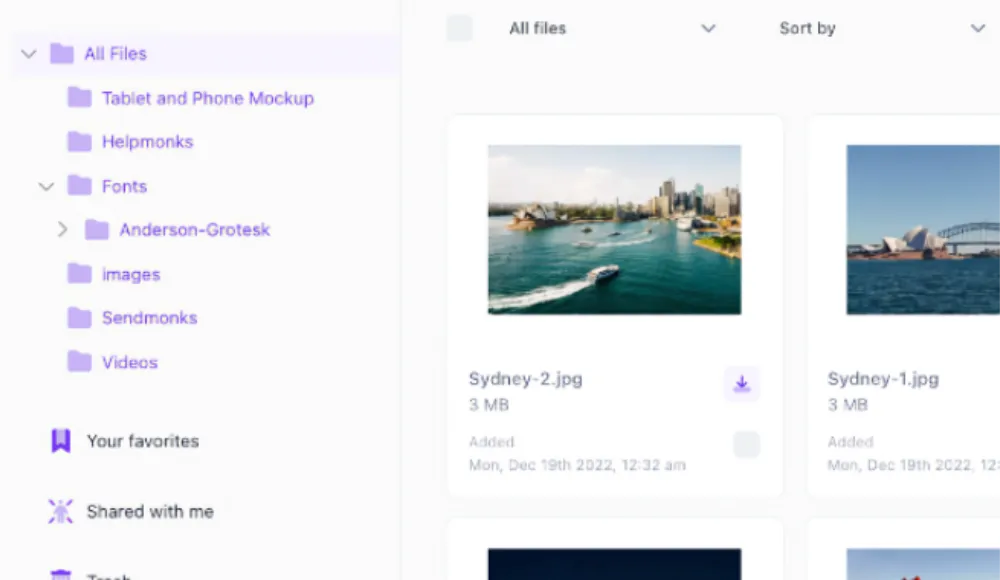
Your team's shared drive is a mess. Files scattered across folders, duplicate images named "logo_final_FINAL_v3", and nobody knows which version is current. Sound familiar? You are not alone. Poor file organization costs the average knowledge worker 2.5 hours per week just searching for files -- time that could be spent on actual work.
The good news: with the right file organization ideas and a solid system in place, you can eliminate that friction entirely. Whether you are managing documents on a local drive or handling thousands of brand assets in a digital asset management system, these principles apply across the board.
1. Build a Consistent Folder Hierarchy from the Start
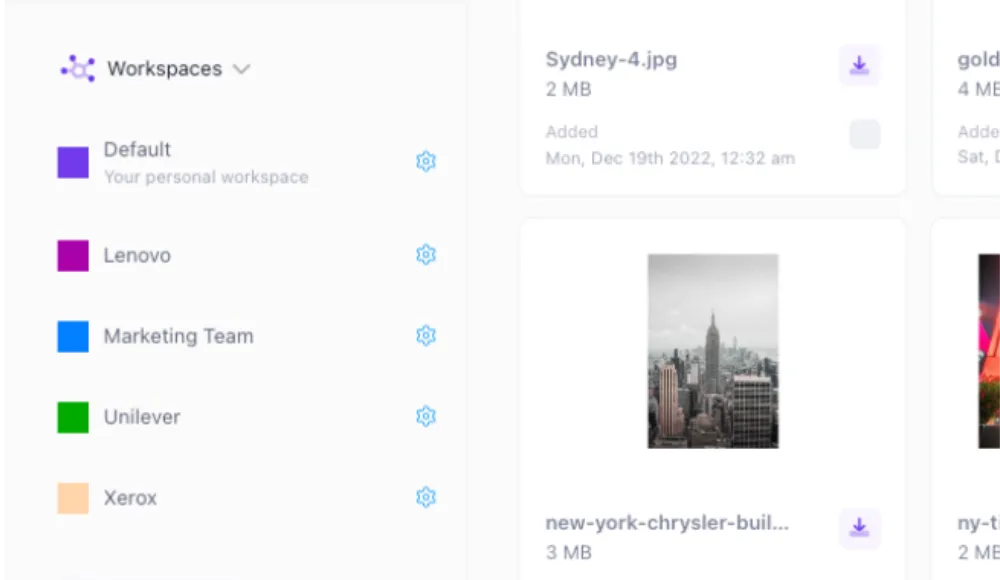
Before uploading a single file, design your folder structure. A clear hierarchy prevents the chaotic sprawl that plagues most teams. A simple three-level structure works well for most organizations: top level by department or brand, second level by project or campaign, third level by asset type (images, videos, documents, templates).
The key is consistency. Every team member should be able to predict where a file lives without asking anyone else. When your folder structure is self-explanatory, onboarding new hires is faster and nobody sends Slack messages asking "where is the Q3 campaign folder?"
2. Adopt a Standard File Naming Convention
File names are searchable metadata. Treat them that way. A strong naming convention typically includes: date (YYYY-MM-DD), project or campaign name, asset type, and version number. For example: 2026-04-15_spring-campaign_hero-banner_v2.jpg
Avoid vague names like "image1.png" or "final.pdf". Use hyphens instead of spaces (spaces break URLs and some systems). Keep names lowercase for consistency. Document your naming convention and make it part of onboarding.
3. Use Version Control Instead of Duplicate Files
"logo_v1", "logo_v2", "logo_final", "logo_final_FINAL" -- this is version control by chaos. Instead, maintain a single master file and use a proper versioning system that tracks changes over time.
Modern file management tools keep a version history so you can roll back to any previous iteration. This is especially critical for brand assets like logos, templates, and product imagery where the "approved" version must always be clearly identified.
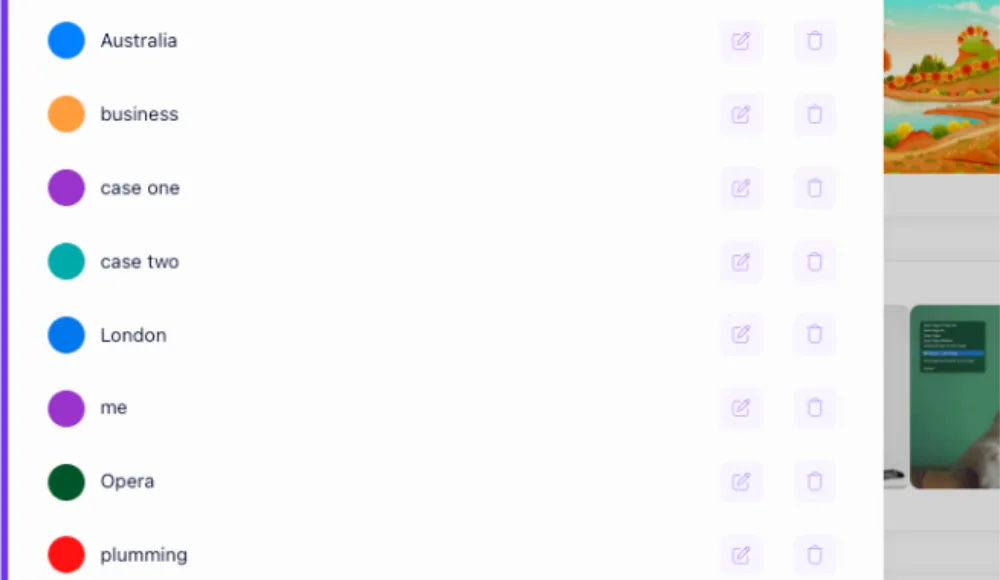
4. Tag Assets for Cross-Reference Discovery
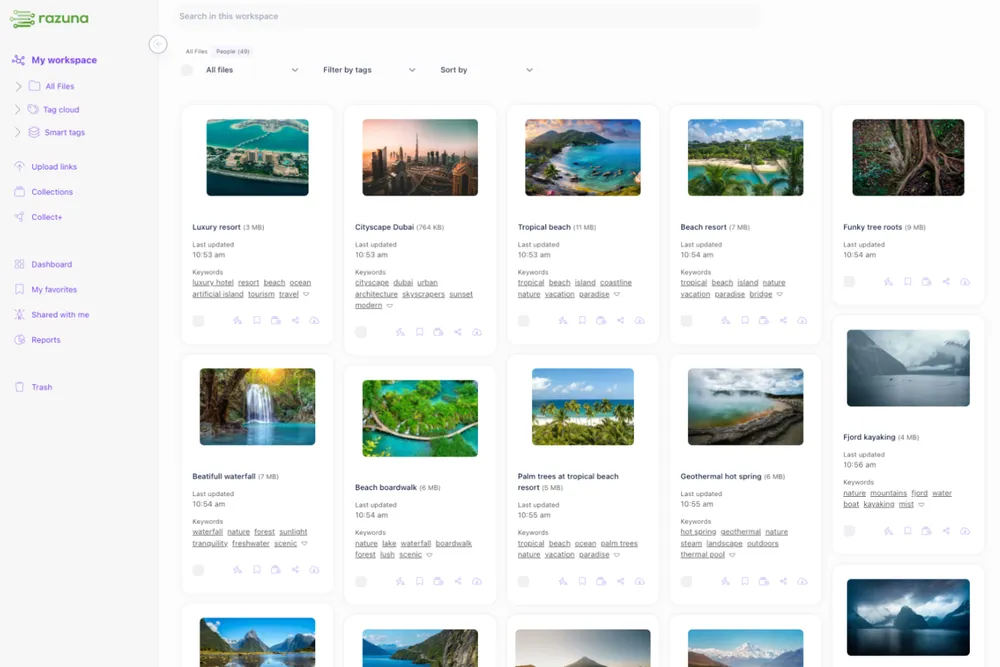
Folders are linear. Real work is not. A product photo might belong in three different campaigns, two different regional folders, and the press kit at the same time. Tags let a single file appear in multiple search contexts without creating copies.
Build a controlled vocabulary for tags. Decide in advance what terms you will use and stick to them. "product-photo", "lifestyle", "logo", "social-media", "print", "approved" are good examples. Avoid free-form tagging where every person invents their own terms -- it creates chaos just as fast as no tags at all.
5. Separate Active, Archive, and Deprecated Files
Not all files deserve equal prominence. Active files need to be instantly accessible. Old campaign assets should be archived but still retrievable. Outdated or superseded files should be marked deprecated so nobody uses a logo that was retired three years ago.
Create three clear zones in your file organization: Active (current projects), Archive (completed work you want to keep), and Trash/Deprecated (nothing should ever be retrieved from here). This reduces cognitive load for your whole team.
6. Set Access Permissions by Role
Open access sounds collaborative but creates problems at scale. When anyone can rename, move, or delete any file, accidental damage is a constant risk. Role-based permissions protect your file structure from well-intentioned mistakes.
Common permission levels: View only (for external stakeholders), Download (for contractors who need assets but should not change anything), Edit (for core team members), Admin (for people who manage the system). Keep admin access tight.
7. Use Metadata to Make Files Self-Describing
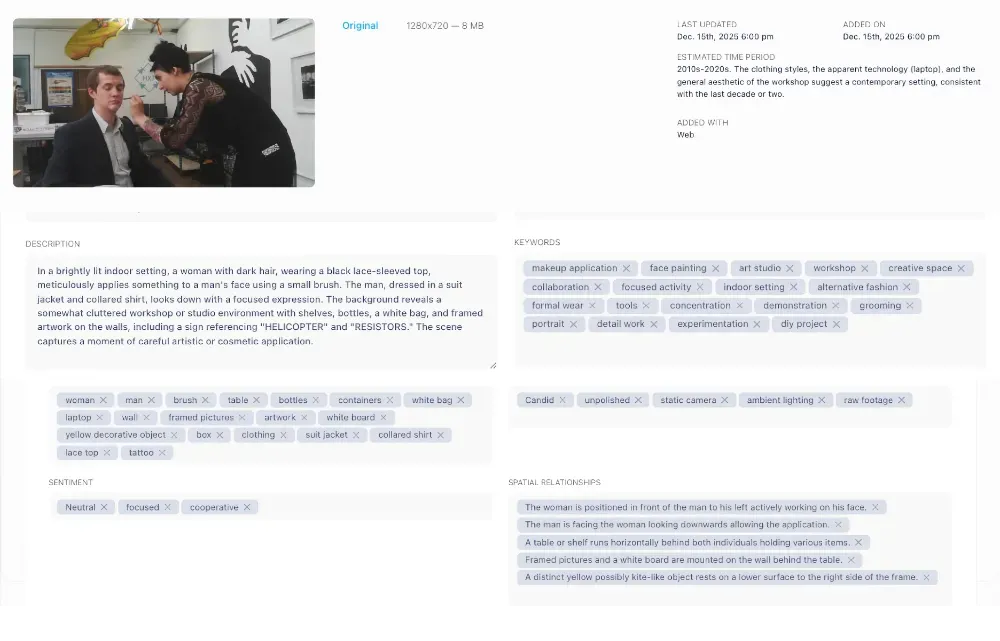
Metadata is the information about your file -- creator, creation date, usage rights, expiry date, campaign association. When metadata is complete and consistent, search becomes dramatically more powerful. You can filter to show only assets approved for print, or only images created by an external agency.
For teams managing brand assets, metadata fields like rights expiry and usage restrictions are especially critical. An image with an expired license that still gets used in campaigns is a legal liability. Good metadata prevents that.
8. Schedule Regular File Audits
File organization degrades over time if nobody maintains it. Build a quarterly audit into your team's calendar. During an audit, check for: orphaned files with no clear owner, duplicates that slipped through, naming convention violations, files that should be archived, and expired licenses.
A two-hour audit every quarter is far less painful than a complete reorganization every two years.
9. Centralize All Files in One System
One of the most common file organization failures is fragmentation: some files on Google Drive, some on Dropbox, some on a local server, some in email attachments. Every additional location multiplies the chance of a team member looking in the wrong place.
Pick one system and migrate everything to it. For document-heavy teams, this might be Google Workspace. For teams managing brand assets, images, videos, and creative files, a dedicated DAM platform like Razuna gives you purpose-built tools that generic cloud storage simply cannot match.
10. Document Your System and Train Your Team
The best file organization system in the world fails if nobody knows how to use it. Write a one-page guide covering: folder structure overview, naming convention rules, how to tag files, where to put new assets, and who to contact with questions.
Include this guide in onboarding. Review it annually. When new asset types or campaigns introduce edge cases, update the guide immediately rather than letting people improvise.
11. Automate Redundant Organization Tasks
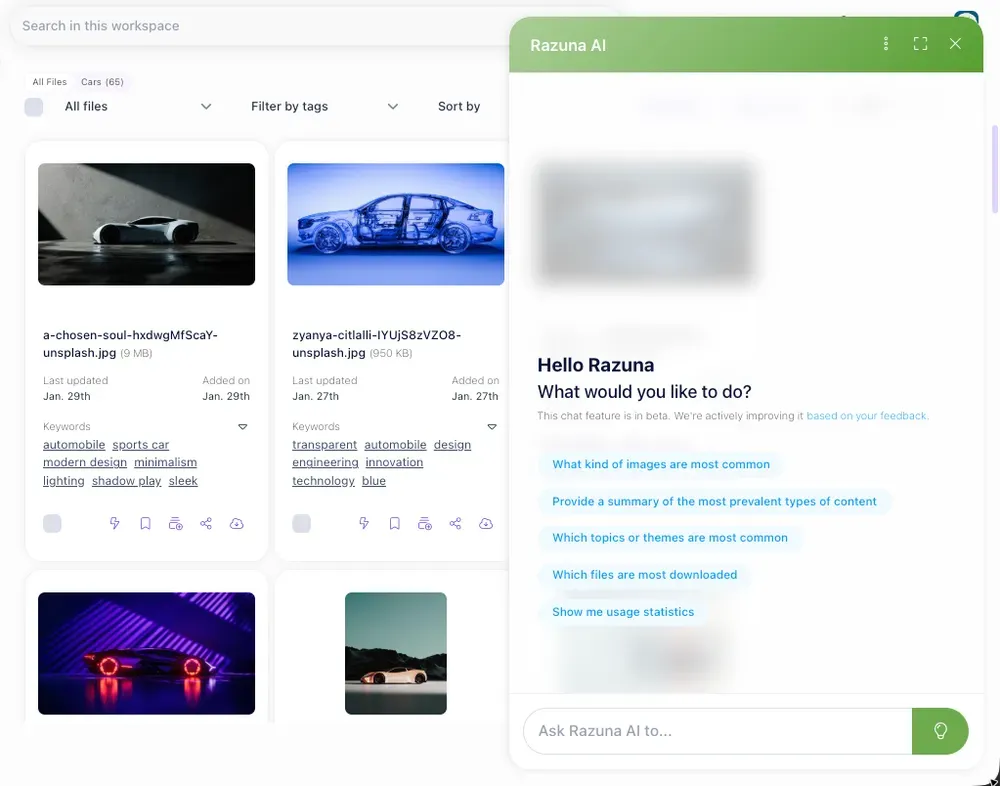
Manual file management does not scale. When your asset library grows past a few thousand files, human-only organization becomes a bottleneck. Automation helps at several points: auto-tagging based on file content (AI can recognize faces, objects, and scenes in images), auto-archiving files after a campaign end date, automated license expiry alerts, and duplicate detection.
Modern DAM systems handle all of this automatically, so your team spends time using assets rather than managing them.
12. Keep a Master Asset Index for High-Priority Files
For the most important assets -- your primary logo, brand guidelines, product screenshots, legal documents -- maintain a pinned or bookmarked master index. This is a curated shortlist of the 20 to 30 files your team reaches for most often.
This index reduces the cognitive overhead of navigating the full library when you just need the standard logo for a quick email signature or a product image for a press release.
13. Separate Client Files from Internal Files
If your team works with external clients, agencies, or freelancers, maintain a clean separation between files you own and files that belong to or involve third parties. This matters for access control (clients should not see each other's work), for legal reasons (ownership and usage rights differ), and for audit trails.
Client portal features in modern DAM platforms let you share specific collections with external parties without exposing your full internal library.
14. Use Search to Validate Your Organization System
Periodically test your file organization by searching for something you know exists and timing how long it takes to find. If it takes more than 30 seconds to locate a specific asset, your organization system has a gap. Identify whether the problem is naming, tagging, folder structure, or metadata -- and fix it.
The gold standard: a new team member should be able to find any asset within one minute on their first day, using only search and the folder structure.
15. Move Beyond Folders: When to Use a DAM
Folders and naming conventions take you far. But at a certain scale -- typically when your library hits several thousand files, when multiple teams share assets, or when compliance and rights management become serious concerns -- a dedicated digital asset management platform becomes necessary rather than optional.
A DAM gives you everything a shared folder cannot: structured metadata, AI-powered search, version history, rights management, usage tracking, approval workflows, and integrations with your marketing stack. It is the difference between a filing cabinet and an intelligent content hub.
The Bottom Line
Good file organization is not about perfection on day one. It is about building habits and systems that scale with your team. Start with a consistent folder hierarchy and naming convention. Add tags and metadata as you grow. Automate what you can. Audit regularly.
When your file organization system graduates beyond what folders can handle, Razuna is built for exactly that transition. Explore how Razuna can help your team organize, find, and share assets faster.
For practical ways to organize and find assets, see Organizing Digital Media Assets: 9 Practical Strategies and Metadata Debt in DAM: Why Marketing Teams Keep Losing Assets They Already Own.