Virtual Team Collaboration Software: 7 Tools by Use Case (2026)
Remote teams rarely struggle because they have no collaboration software. They struggle because a conversation, its decision, the assigned task, and the approved file live in different places. Adding another app helps only when it closes one of those gaps.
This guide compares seven virtual team collaboration tools by the job each can do: team conversations, meetings, task coordination, shared knowledge, visual planning, and digital asset management. The shortlist is organized by use case rather than an overall ranking. Product capabilities were checked against the vendors' official pages in October 2026; test the features your team needs in the plan you intend to use.
Choose the workflow before choosing the software
Start with a recent project that involved people in more than one location. Where did work pause? Perhaps an editor could not find the approved photo, a designer missed feedback in a private chat, or nobody knew who owned the next step. Those are different problems, and they call for different tools.
A useful setup gives each kind of work a clear home. Conversations belong in a channel. Commitments belong in a task system. Repeatable instructions belong in shared documentation. Brand files and reusable media belong in an organized library. Links connect those records so colleagues can follow the work without collecting copies.
1. Slack for ongoing team conversations
Slack channels organize discussions around projects, teams, and topics. They give colleagues a shared place to ask questions and exchange files, and Slack Connect supports collaboration with people outside the organization.
Consider Slack when important context is trapped in private messages or long email threads. Give each project a channel, write a short purpose statement, and agree which discussions need a thread. At the end of a decision, put the outcome in the relevant task or document and link back to it.
A channel is useful for discussion, but its message history needs a companion workflow for final decisions and approved assets. Otherwise, people still have to search through conversation to discover which answer or attachment is current.
2. Microsoft Teams for communication in a Microsoft environment
Microsoft Teams brings chats, channels, meetings, and shared content together. Its official product overview also describes bringing Loop and OneNote pages into the workspace.
Teams is a candidate for organizations that already organize their working day around Microsoft services. During a trial, test the ordinary handoff: create a project space, invite a colleague, share the working document, hold a meeting, and record the follow-up action.
Include an external collaborator in that test. A tool can work well for employees while still creating friction for clients or freelancers. Confirm access and ownership before adopting it as the default for client-facing projects.
3. Zoom Meetings for live discussion and review
Zoom Meetings supports online meetings, screen sharing, and annotation. It is worth evaluating when people need to discuss a difficult decision together or review work in real time.
Use live meetings for the parts of collaboration that benefit from immediate interaction. Send the brief and file links beforehand, identify the decision the meeting should produce, and finish by assigning the next action.
A meeting recording does not replace a clear project update. After the call, record the decision where the rest of the work lives. Colleagues in another time zone should be able to move forward without watching an entire recording.
4. Asana for task ownership and project coordination
Asana provides task and project management, including assignments, dates, dependencies, and custom fields. It is a candidate when teams understand the project goal but lose track of who should do what next.
Test it with a real deliverable: a campaign launch, a website update, or a client handoff. Assign one owner to each action, describe what completion means, and link the brief and assets directly from the task.
Keep the initial process small. A board with clear owners and next steps is easier to maintain than a complicated workflow nobody updates. Add fields when they answer a recurring operational question, such as which work is waiting for review.
5. Notion for shared knowledge and project context
Notion offers a workspace for team knowledge and work. Evaluate it when a distributed team needs a central place for briefs, procedures, project context, and decisions that should survive beyond a chat thread.
Start with a small set of reusable pages: a project brief, a decision log, and an onboarding guide. Give each page an owner and a review date. A short, maintained reference is more useful than an extensive collection of abandoned notes.
Keep links to the original task or asset beside the explanation. Duplicating a file into several pages can leave people unsure which copy to use. Shared documentation works best when it explains the process and points to its current records.
6. Miro for visual planning and workshops
Miro's online whiteboard tools support sticky notes, shapes, connection lines, and diagrams. These can help teams map a customer journey, organize ideas, or discuss a process that is difficult to explain in a linear document.
Try a workshop around a real question, such as where an approval process slows down. Give participants time to add ideas independently, group the observations, then choose the actions to take.
The board is a working surface, so plan the handoff. Record the agreed outcome in the project brief and create tasks for the changes. This keeps useful workshop decisions from disappearing into a board that nobody opens again.
7. Razuna for the files behind collaborative work
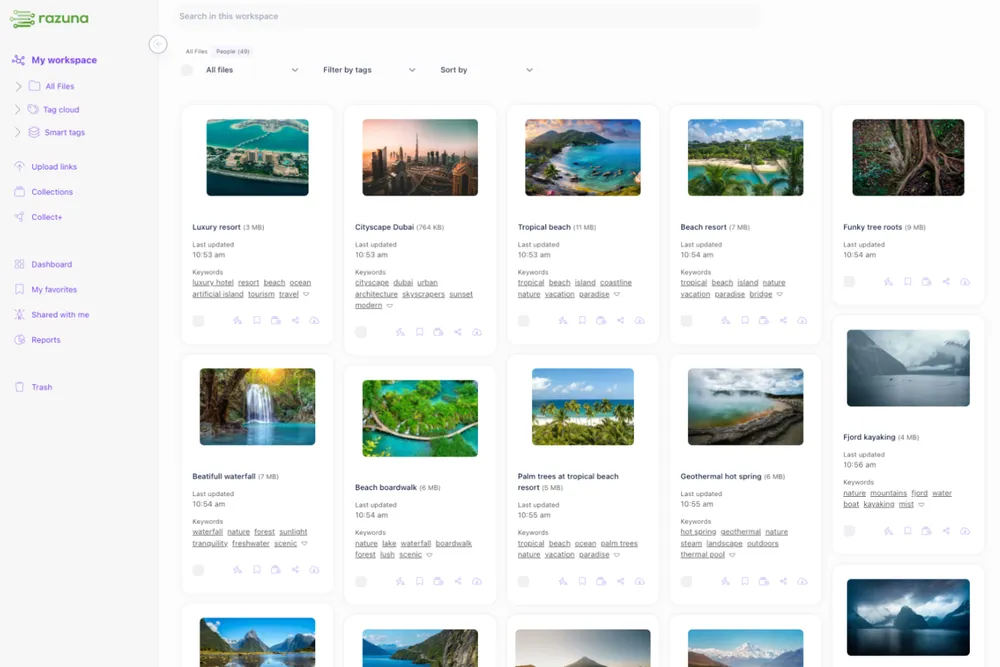
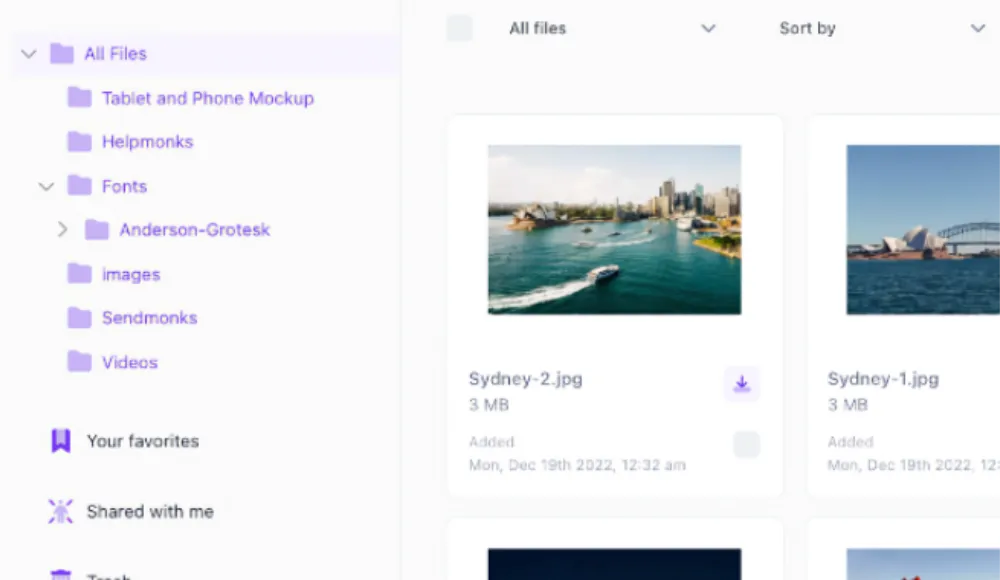
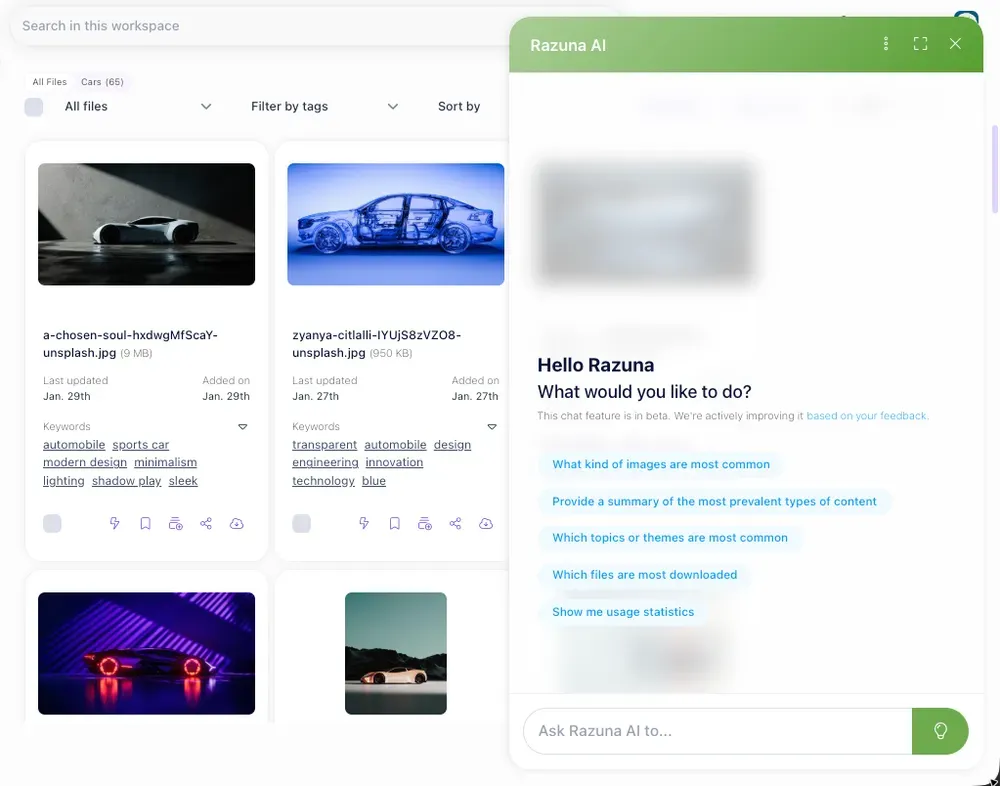
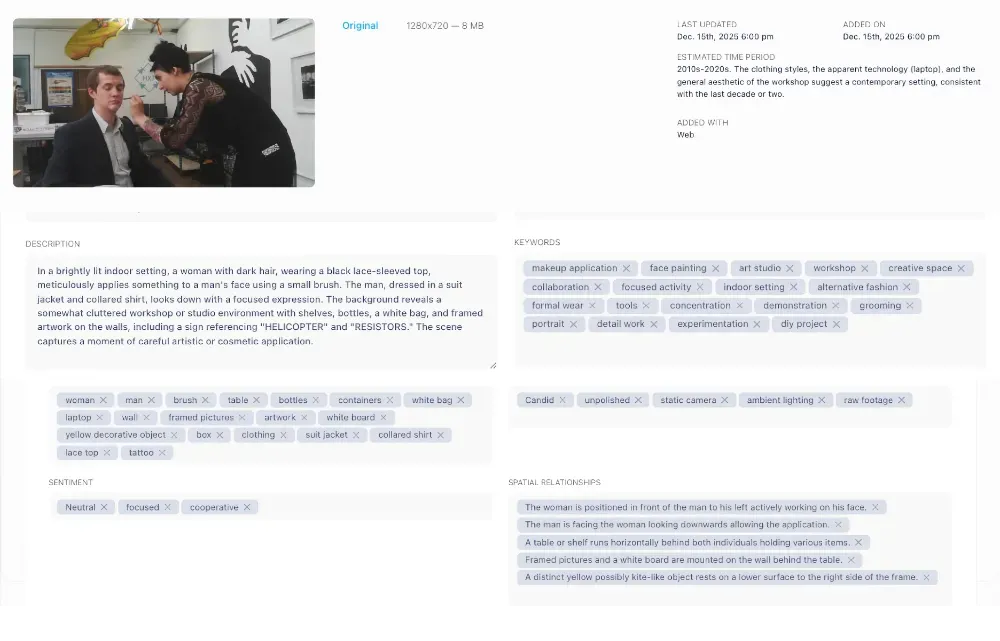
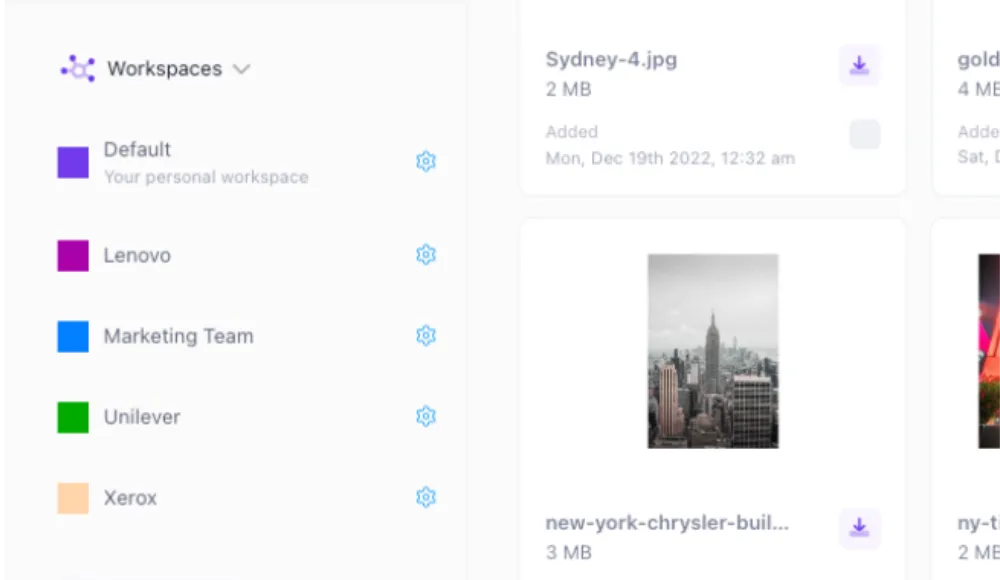
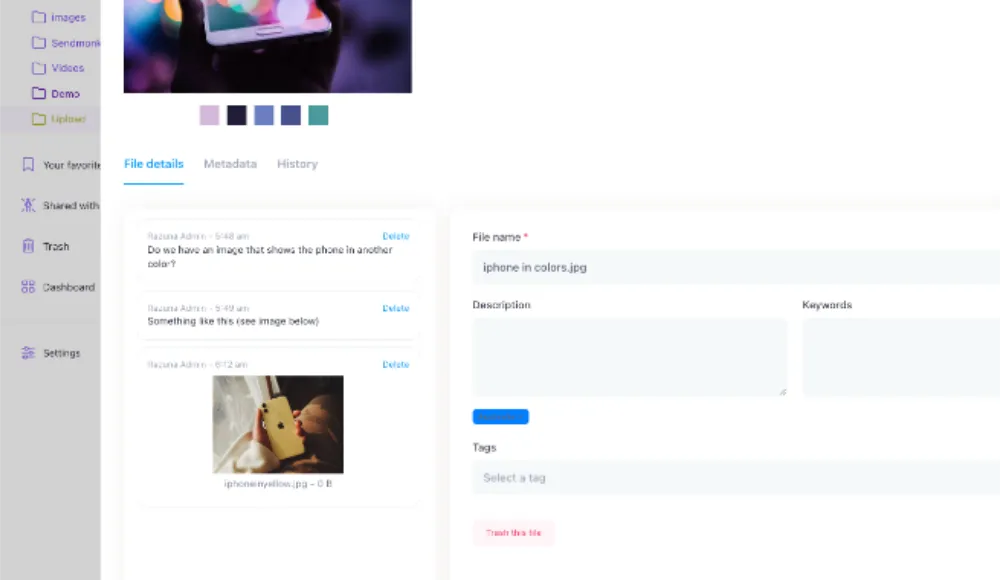
Razuna focuses on digital assets: the photos, videos, graphics, and documents teams repeatedly find, update, and share. Its features include workspaces, folders, tags, metadata, versioning, search, and sharing tools.
Consider a DAM when the recurring question is “Where is the right file?” A marketing team might need the current campaign image, an agency might need to separate client libraries, or a designer might need to reuse an approved asset without asking a colleague to resend it.
Build one representative library during evaluation. Add a small set of real files, record the metadata people actually search for, set access for the people involved, and test finding and sharing an asset from another person's account. Use that exercise to see how Razuna fits the workflow.
Keep conversations and project plans in their chosen tools, and link to the managed assets. Our guide to content collaboration explains the broader handoff between people, content, and review.
Run a one-week evaluation with a real team
Pick a project with a clear outcome and involve the people who do the work. Include at least one colleague in another time zone and, if relevant, a client or contractor. Test the complete journey rather than isolated features.
- Create the brief. A new participant should understand the goal, owner, deadline, and success criteria without a meeting.
- Assign the work. Each person should be able to find their next action and the material needed to complete it.
- Find the asset. Ask someone who did not upload a file to locate the right version using the available search and organization.
- Review and decide. Collect feedback, record the decision, and make the next step visible to the team.
- Test access. Check what an employee, external collaborator, and removed participant can see.
- Repeat a handoff. Move the work to another person and see whether they can continue without reconstructing its history.
Track practical outcomes: time spent finding files, repeated requests for context, missed handoffs, and avoidable meetings. These measures show whether the setup improves your workflow. Our article on improving team collaboration offers additional process changes to test alongside the software.
Frequently asked questions
What is virtual team collaboration software?
It is software that helps people coordinate work across locations. The category includes messaging, meetings, task management, shared documentation, visual planning, and asset management. A team may use more than one tool because each supports a different part of the job.
Does a small team need a digital asset management platform?
Team size alone does not decide it. Look at how often files are reused, how much time people spend finding them, and whether versions or access cause mistakes. A simple shared folder may be sufficient for occasional work. A DAM is worth evaluating when managing the files becomes a recurring job.
How can we avoid adding too many tools?
Give every tool a specific purpose and define where each record belongs. Before adding another app, identify the problem it should solve and a measurable result. Retire duplicate processes once the new workflow has proved useful.
Where should a distributed marketing team start?
Choose one campaign and make its brief, tasks, decisions, and assets easy to find. If files are the weak point, explore Razuna for marketing teams and test the library with your own content. Adopt the setup that makes your next handoff easier.