How to Choose Media Asset Management Software

Choose media asset management software by testing how your team ingests, finds, reviews, and shares media. A feature list is useful, but the deciding question is whether another person can find the right clip, image, or recording without asking the person who uploaded it.
This buying guide is published by Razuna. It focuses on evaluation criteria rather than a dated ranking of vendors. For the category definition, read what media asset management is. To evaluate our product, see Razuna media asset management software.
Start with your media workflow
Write down who uploads source files, who adds metadata, who reviews work, and who receives the final assets. Include external producers, agencies, clients, and occasional contributors. A system that works for one editor may need different permissions and sharing controls when the whole organization uses it.
Record your current library size and expected growth, largest files, required formats, storage locations, and delivery needs. Distinguish working footage from approved deliverables. This gives vendors a concrete brief and makes proposed plans easier to compare.
Evaluate these six capabilities
1. Uploads and previews
Upload a representative set of video, audio, images, and project files. Confirm which formats can be stored, which generate browser previews, and which need conversion. Test a large file on a connection similar to the one your remote contributors use. Storage support and preview support are separate questions.
2. Metadata and search
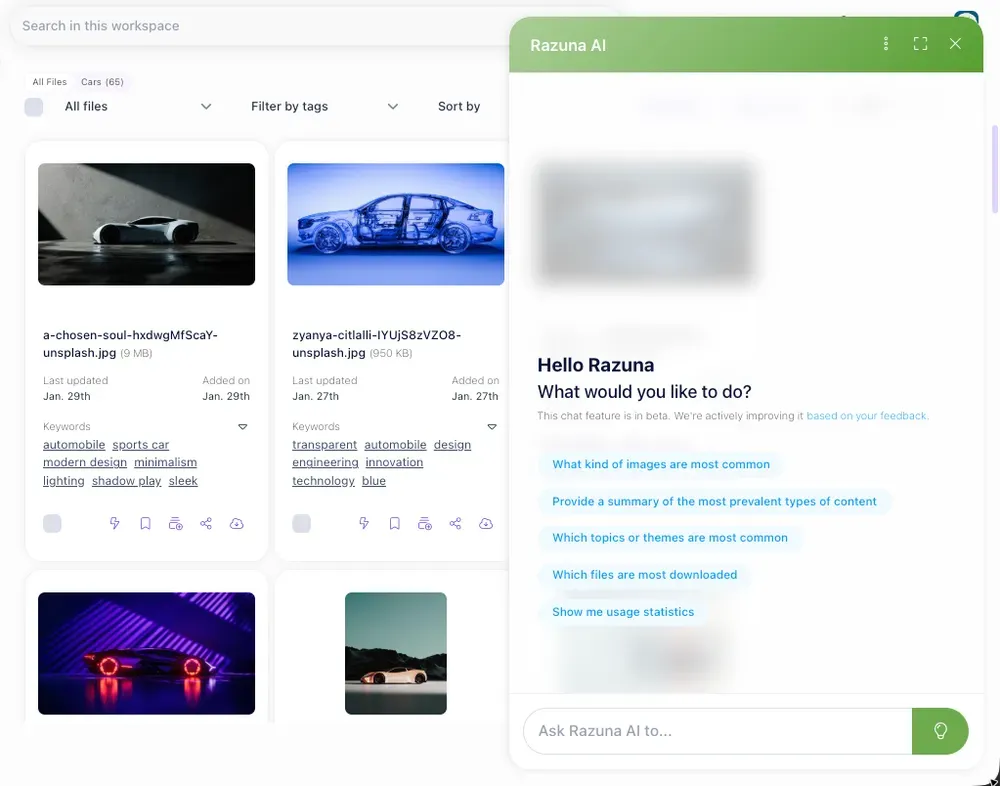
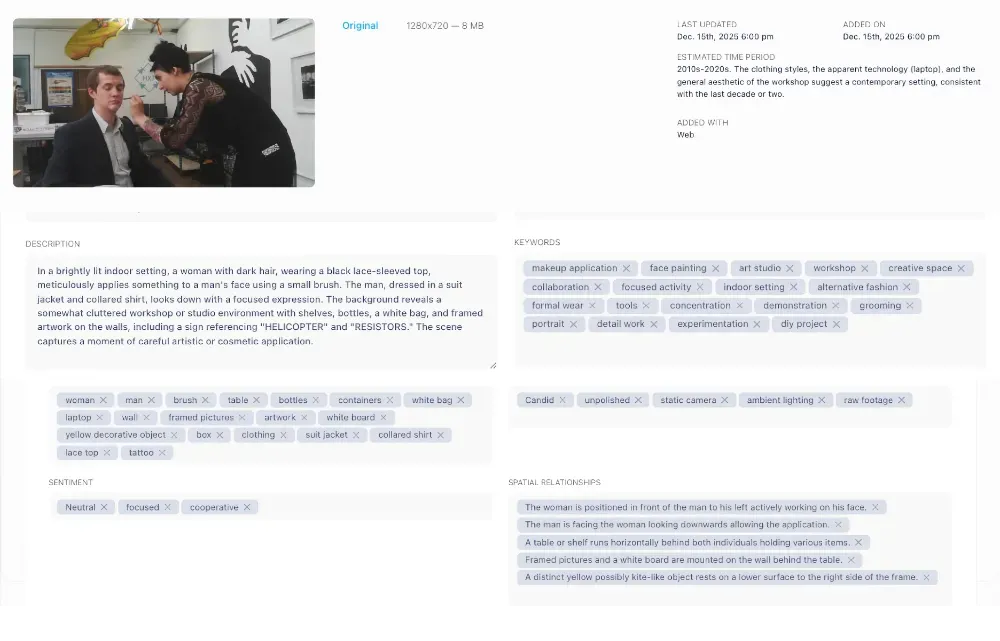
Define a small set of fields such as project, client, shoot date, rights information, and approval status. Ask someone unfamiliar with the library to find assets using those fields. If AI search or transcription matters, test it with your own accents, terminology, and content. Confirm which AI functions are included in the proposed plan.
3. Versions and review
Replace a file with a revision and verify what happens to its history, metadata, links, and review comments. Test how reviewers identify the current version. If your process requires comments tied to a timestamp, verify that precise workflow rather than assuming that “video collaboration” includes it.
4. Access and distribution
Create a restricted internal user and an external reviewer. Check what each can see, download, edit, and share. Test link expiry and access changes. Review whether your required branding and client workspaces are included in the plan. Ask who can restore access if an asset owner leaves the organization.
5. Integrations and automation
List the systems that must exchange assets or metadata: creative applications, a CMS, ecommerce tools, storage, or an internal application. Test the specific connector or API operation you require. A large integration directory does not establish that a particular field, rendition, or workflow will transfer correctly.
6. Migration and export
Export a sample from your current system, then import it into the candidate. Compare original files, filenames, metadata, versions, and collections. Identify which permissions and links need to be recreated. Also test exporting from the candidate so you understand how to retrieve your library later.
Compare the complete plan
Request a written breakdown of storage, users, external access, AI processing, transfer limits, support, and implementation work. Ask how each cost changes as the library grows. Compare plans with the same requirements; a low entry price and a fully configured enterprise quote describe different purchases.
For Razuna, the free plan includes 500 GB, 5 users, and 2 workspaces. Paid plans include unlimited users and workspaces. Review the current plan table for advanced video, audio, AI, integrations, and deployment options before deciding which tier fits.
Use a small pilot before moving everything
- Select one representative project, including originals, revisions, and final deliverables.
- Agree on the minimum metadata required for each asset.
- Give uploaders, reviewers, and external recipients their actual roles.
- Test finding, reviewing, sharing, and downloading files from start to finish.
- Document missing capabilities, manual work, and migration exceptions before expanding.
If most files are logos, templates, and approved campaign creative, also consider the brand asset management workflow. If the problem is only local filenames and folders, a desktop file organization tool may be sufficient.